Summary:
Blend has partnered with KensieMae Technologies to develop a plugin that allows for async interactions from Encompass to Blend. This plugin leverages Encompass' SDK which has been in-use for several years. As of early 2025, ICE technologies the developer of Encompass have announced a soon-to-come deprecation of the Encompass' SDK translating in the eventual deprecation of the KensieMae plugin.
In response to this change, Blend has developed a custom solution leveraging the Developer Connect API integration to emit webhook notifications from Encompass to Blend’s event-listeners thus allowing for a continued integration between the two systems.
The purpose of this article is to illustrate the steps that we can take to access relevant settings in the existing KensieMae plugin that would allow for a smoother transition to the new api integration.
How to find the KensieMae plugin settings in Encompass
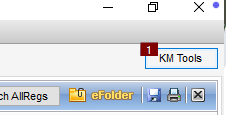
You can click the “KM tools“ button on the upper-right section of the Encompass smart-client or press F12 (please note that only authorized users may be able to access these settings in Encompass)
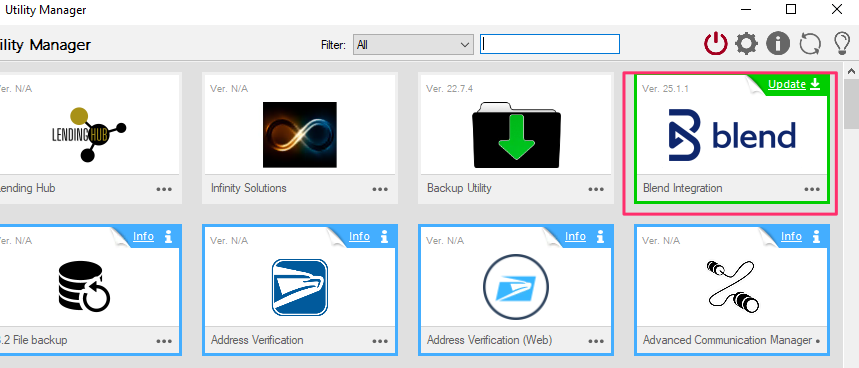
A popup window will display and one of the options listed will be a title labeled “Blend“ and you simply need to just click on it.
How to access the Borrower Info settings in the KensieMae plugin
These settings can be found by selecting the “Borrower Info“ tab in the KensieMae settings:
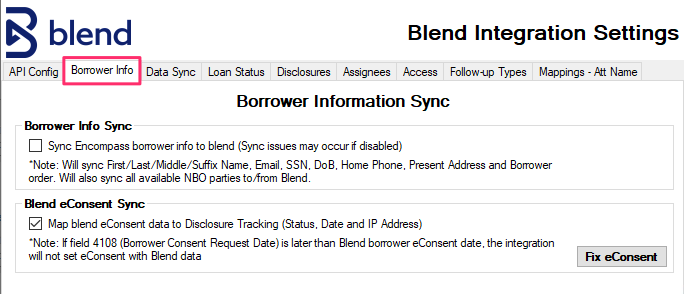
From the above screenshot, you will find the current settings leveraged by the KensieMae integration such as the “Sync Encompass borrower info to Blend“ that allows for borrower details such as Name, email, dob, phone, and borrower order to be synched to Blend.
In a similar way, you will see a “Map blend eConsent to Disclosure Tracking” checkbox which allows the plugin to update the loan’s Disclosure Tracking Record with relevant disclosure information captured in Blend.
How to access Loan Status settings in the KensieMae plugin
These settings can be found by selecting the “Loan Status“ tab in the KensieMae settings:
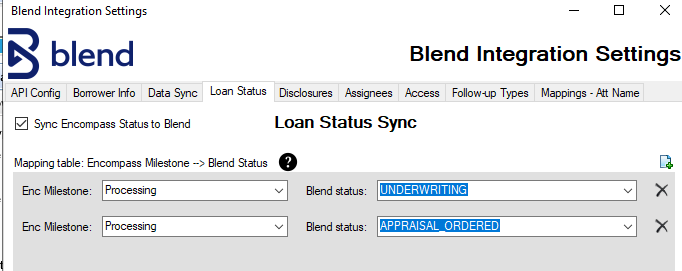
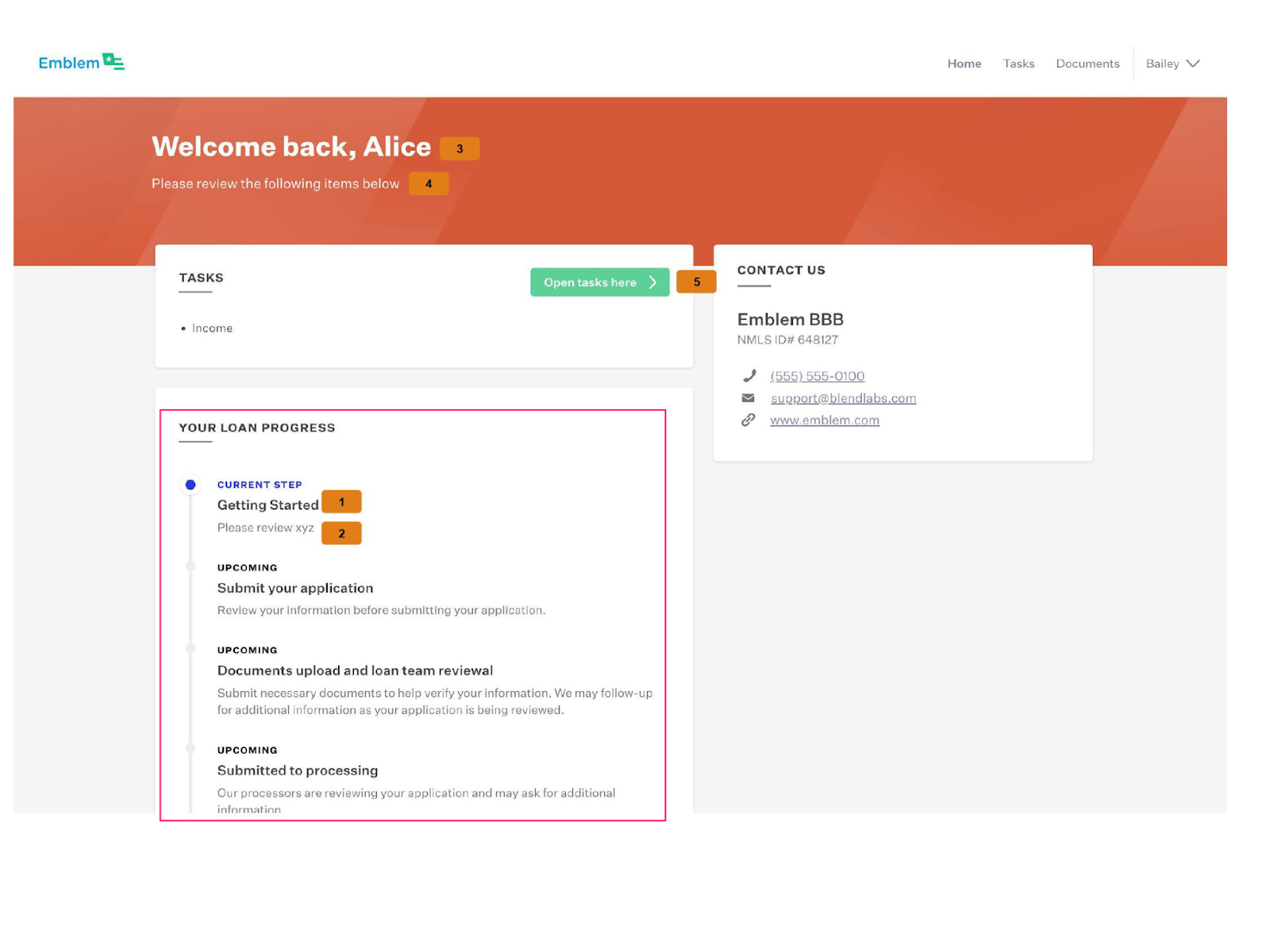
The above configuration is used by the KensieMae plugin to determine the Encompass milestones that would reflect in the lender’s pipeline and the borrower portal.
Example:
How to access the Assignees settings in the KensieMae plugin
These settings can be found by selecting the “Assignees“ tab in the KensieMae settings:
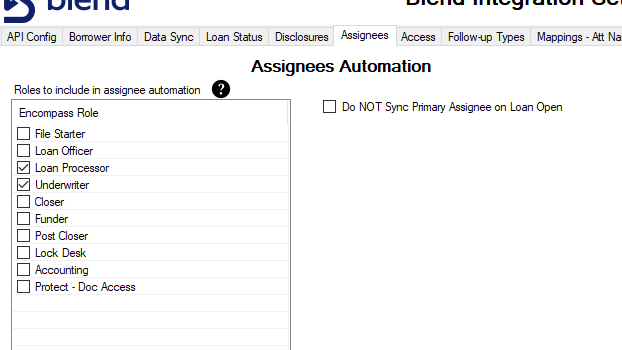
The above settings represent the Encompass roles that you have configured to sync to applications in Blend. (any user with this role associated to the file in Encompass will be synched to the application in Blend as long as they have a valid profile in Blend)
How to access the Follow-up Type settings in the KensieMae plugin
These settings can be found by selecting the “Follow-up Types“ tab in the KensieMae settings:
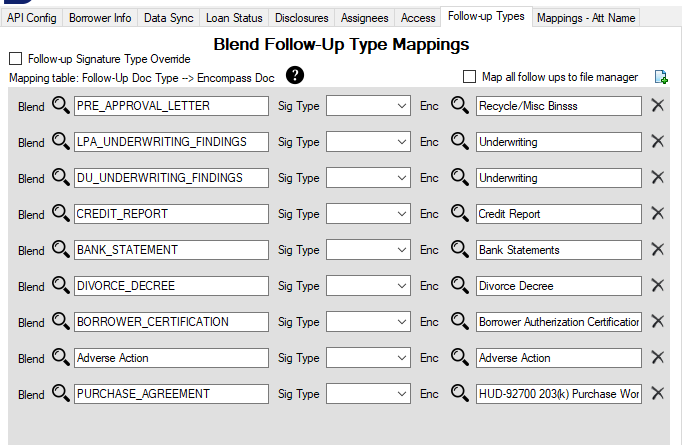
These configurations are specific to specific document Blend document types that can be associated to specific Encompass conditions to create followups in Blend.
Was this article helpful?
That’s Great!
Thank you for your feedback
Sorry! We couldn't be helpful
Thank you for your feedback
Feedback sent
We appreciate your effort and will try to fix the article